
How to Turn a PDF into a Podcast on iPhone
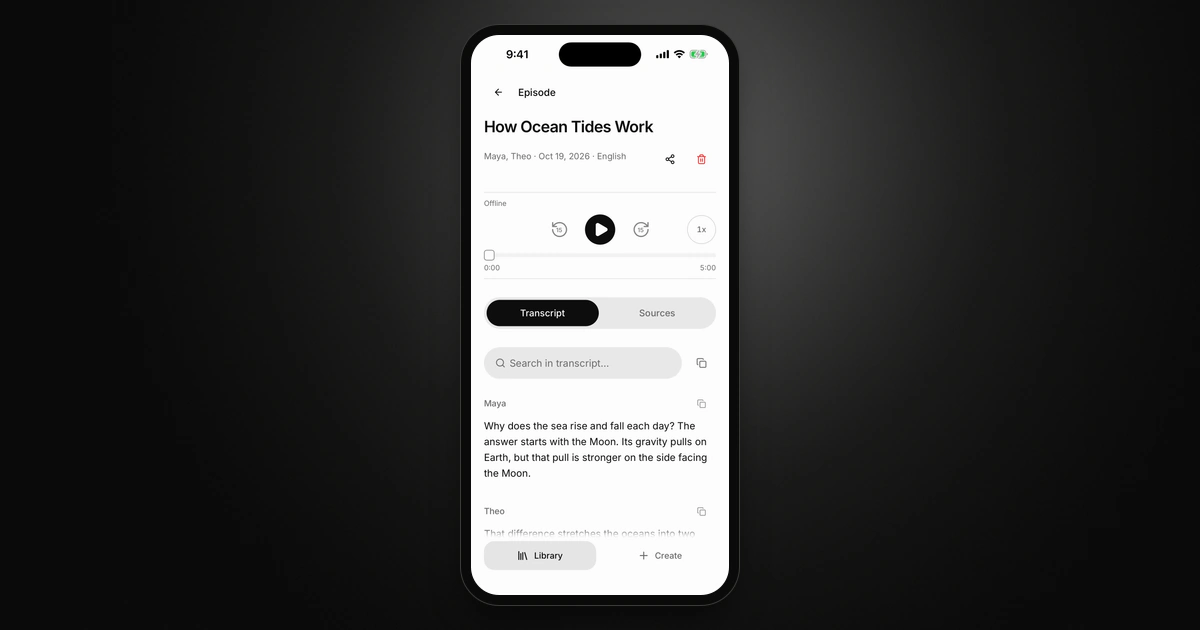
To turn a PDF into a podcast, give it to an AI tool that writes and voices a conversation about it: this is a summary in conversation form, not a word-for-word reading. Google’s NotebookLM does it free with a Google account. On iPhone or iPad, Castella lets you set the length, style and language; it needs an account, internet and credits, and uploads your PDF.
Google’s steps follow its help pages as of October 2026. Castella steps follow the app’s current code, and the screenshots are iPhone Simulator captures made with a sample PDF.
What “PDF to podcast” means (and what it doesn’t)
A PDF-to-podcast tool reads the text in your PDF, has an AI model write a script about it, and turns that script into speech with AI voices. You get an episode that explains and discusses the document. It doesn’t read every sentence, and it can leave things out or get them wrong. Google’s own help says Audio Overviews “may contain inaccuracies or audio glitches”, and the same caution applies to any tool that writes a script for you. For anything you’ll be tested or quoted on, check the important points against the PDF.
If you want the exact words read aloud, you need text-to-speech, not a podcast. On iPhone, Apple’s Speak Screen reads the text on screen. Open Settings > Accessibility, then Spoken Content (Apple’s guide calls this menu Read & Speak, and the name depends on your iOS version), and turn on Speak Screen. Then, in Apple’s words, “Swipe down with two fingers from the top of the screen.”
Which option fits
| NotebookLM (Gemini Notebook) | Castella | |
|---|---|---|
| Cost | Free with a Google account, within usage limits | Account required; each episode uses credits |
| Where | Web, plus an app for iPhone and iPad (iOS 17 or later) and Android | App for iPhone and iPad (iOS 15 or later) |
| Length | Shorter, Default or Longer (English only) | 5, 10 or 20 min, or Custom: up to 20 min without a plan, 60 with one |
| Style | Formats: Deep Dive, Brief, Critique, Debate | 10 styles, from Casual and Educational to Debate and Tutorial |
| Languages | 80+ | English, Russian, Spanish, French, German, Japanese, Chinese |
| Keep the audio as a file | Not from the mobile app (downloads stay inside the app) | Yes, share the audio from the episode screen, including Save to Files |
| Where your PDF goes | Google’s servers | Castella’s server and third-party voice providers |
- You want it free and have a Google account: start with NotebookLM (Option 1).
- You want to pick the length, style and language from your phone, keep a library of episodes, and save the audio: use Castella (Option 2).
- Your PDF is a scan: Castella can’t read it; see “When it fails” for what to do instead.
Option 1: Make a free Audio Overview with NotebookLM
Google renamed the help pages to Gemini Notebook; the app in the App Store goes by that name too. The steps below are from Google’s mobile help.
-
Install the app and create a notebook
Install Gemini Notebook from the App Store (iPhone or iPad with iOS 17 or later), sign in with your Google account, and tap Create New.
-
Add your PDF as a source
Choose PDF and pick the file. You can also open a PDF in another app, tap Share, and choose Gemini Notebook.
-
Generate the Audio Overview
Open the Studio panel and generate an Audio Overview. To change it first, tap the pencil icon next to it: pick a language, adjust the length, choose which sources to use, and add a prompt such as “focus on chapter 3”.
-
Listen or download it
Play it in the app, change the speed, or tap Download to keep it in the app’s Downloaded section. Google notes that the mobile app’s Audio Overviews “cannot be downloaded as a file to your device.”
Google lists daily or compute-based usage limits for free accounts and changed them on September 2, 2026, so check its upgrade page for the current numbers. Google says your data “is not used to train Gemini Notebook unless you provide feedback.”
Option 2: Make a PDF podcast with Castella on iPhone or iPad
-
Sign in
Castella needs an account to make episodes, and the only way in is Sign in with Apple. If you aren’t signed in, the PDF option shows “Sign in to read article links and PDFs. Your text draft stays here.”
-
Choose PDF
Open the Create tab (“Create a podcast”). Tap PDF, then Choose a PDF and pick the file. The rule under the button reads “PDF only · Up to 10 MB per file · 3 files total” on the free plan; with a plan you can add up to 10 files. Castella uploads the PDF and reads its text on its server. You can’t send a PDF to Castella from another app’s share sheet; pick it from inside Castella.
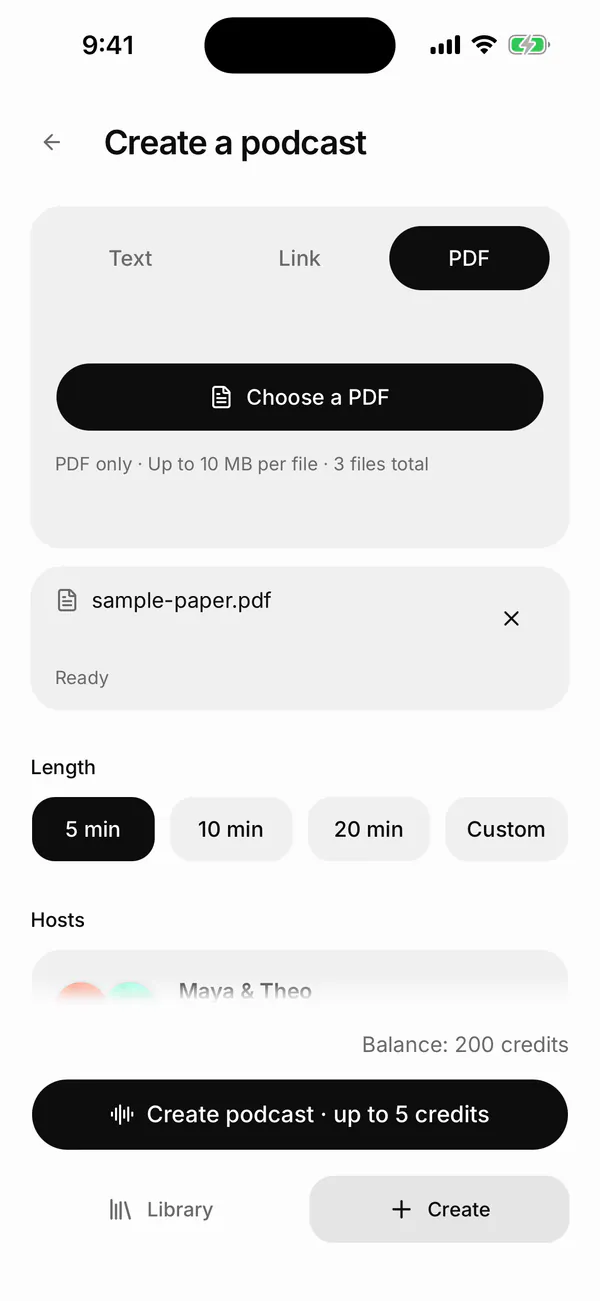
Pick the PDF from inside Castella. -
Set the length, style, language and hosts
Pick a Length: 5, 10 or 20 min, or Custom (from 1 minute up to 20, or 60 with a plan). The Hosts card shows who will talk; tap Change hosts to pick others (more on AI hosts). Then open Customize: add what the hosts should focus on if you want (optional), tap Language and Style (such as Educational or Debate) to choose them, and add an Episode name, optional, or leave it on “Automatic”.
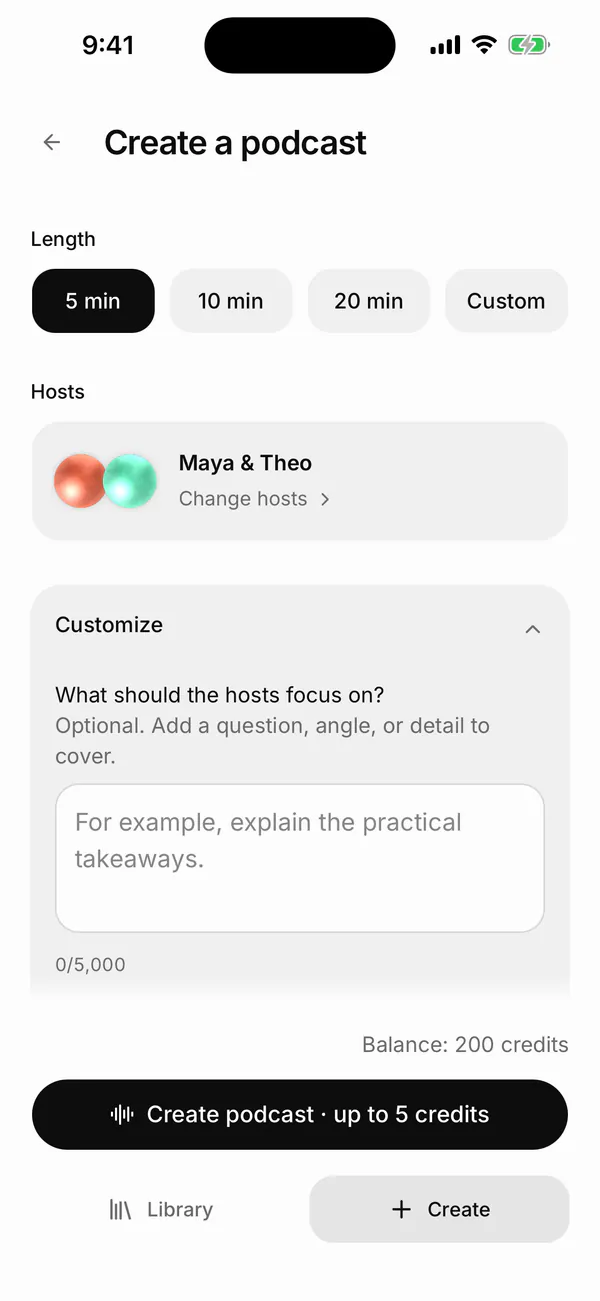
Pick a length and the hosts, then open Customize. -
Check the credits and create the episode
At the bottom, Castella shows your balance (“Balance: N credits”). The button shows the most this episode can cost: tap Create podcast · up to N credits. N isn’t fixed; it depends on the length and the hosts you chose. If the cost changes when you tap it, Castella asks you to confirm the new amount first. If your balance is too low, Castella says “Add credits to create this episode.” and offers Get credits.
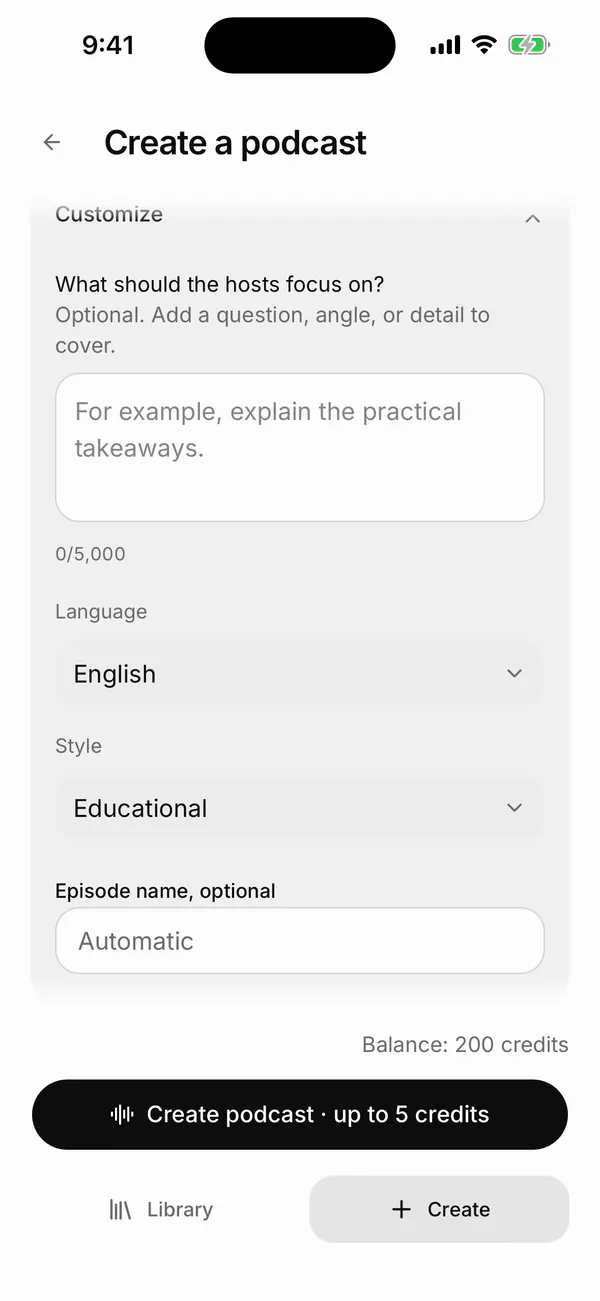
Language, Style and the episode name sit under Customize. The button shows the most this episode can cost.
-
Wait for Ready in your library
The episode appears in Library and moves from “Writing your conversation” to “Creating audio” to “Ready”.
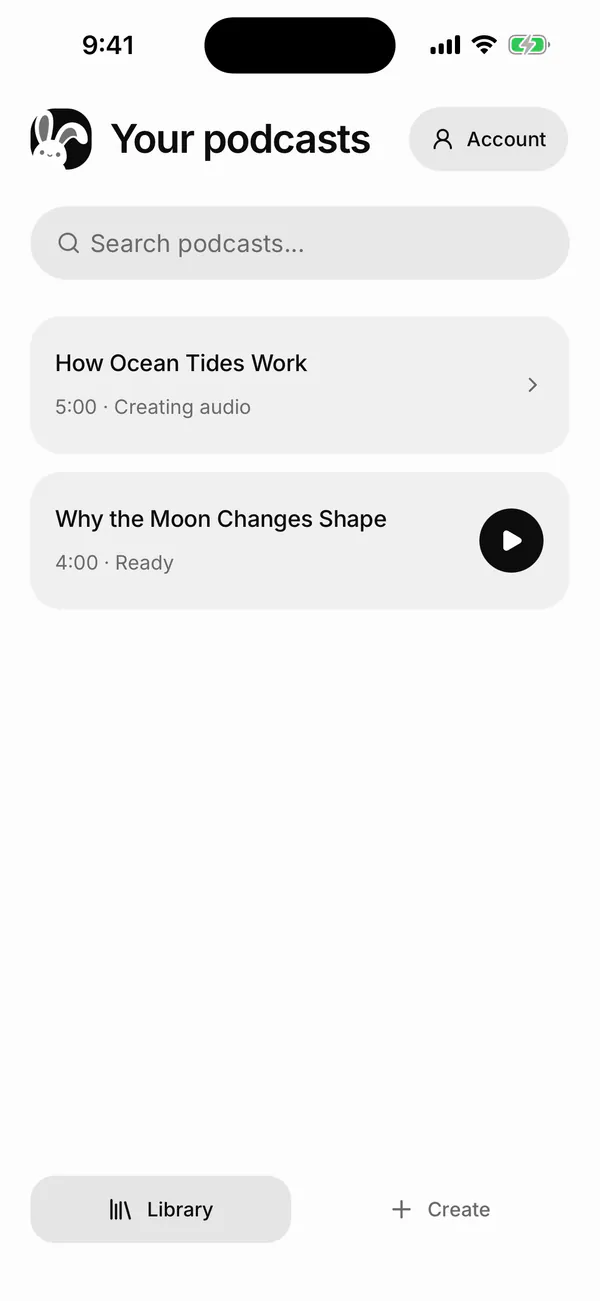
The status changes as the episode is made. -
Listen, read along, or save the audio
Open the episode. The player has buttons to go back or forward 15 seconds and to change the playback speed. Transcript shows the script as text, and Sources lists what the episode was made from. A new episode shows “Audio downloads when you play”. Once the audio has downloaded, the player shows “Offline” above the controls, which means that episode’s audio is saved on your device; making a new episode still needs the internet. To keep or send the audio, tap the Share button next to the episode details. The iOS share sheet opens, where you can send it to another app or tap Save to Files.
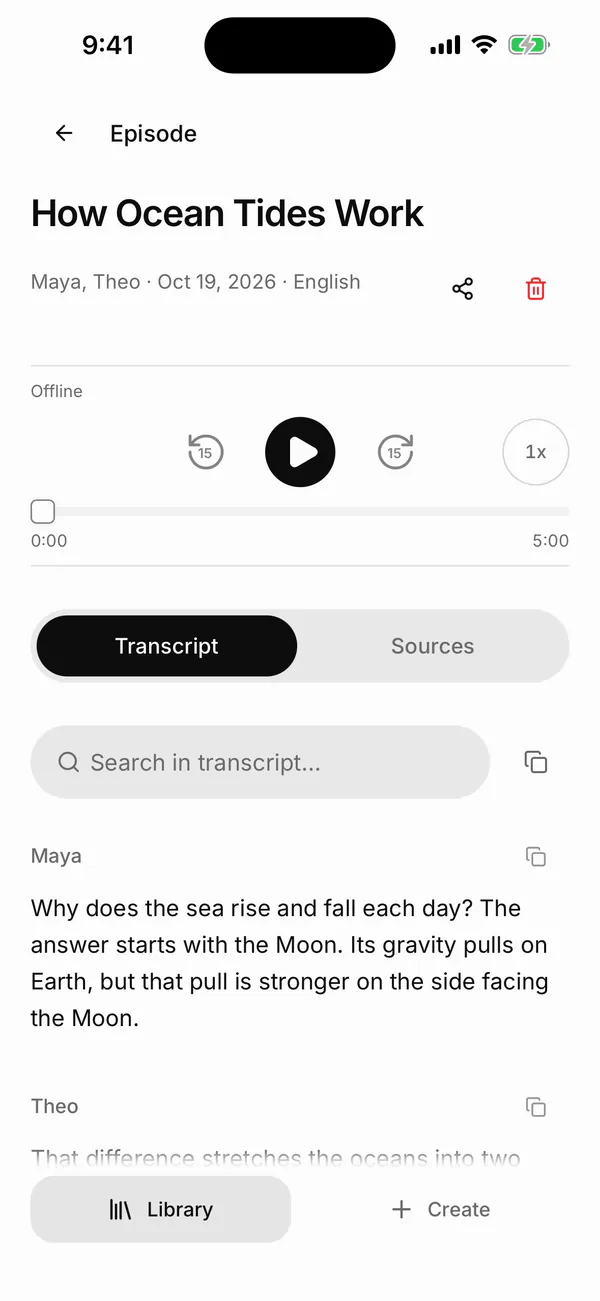
Check key points against the PDF in the transcript.
Castella also makes episodes from pasted text or up to 5 public article links: see Text to podcast.
Get a better episode from your PDF
- Send only the pages that matter. A focused PDF gives a focused episode, and it helps you stay under 10 MB. For a long book, make one episode per chapter.
- Match the style to the job. Educational or Tutorial suits study material; Debate lets you hear two sides of an argument; News or Analysis suits reports.
- Pick the length for when you’ll listen. A 10-minute episode fits a short commute. Anything over 20 minutes needs a plan.
- Read the transcript for anything you’ll rely on, and check it against the PDF.
When it fails
Castella’s PDF input page lists which PDFs work.
- “This PDF has no readable text…” The PDF is a scan: a picture of each page with no text to select. Copy the text into Text instead, or find a PDF with selectable text.
- The PDF is password-protected. Castella can’t open locked PDFs. Choose an unlocked copy, or paste the text.
- The file is over 10 MB. Choose a smaller PDF (for example, only the chapters you need), or paste the text.
- You can’t find Castella in another app’s share sheet. Castella has no share extension. Save the PDF to Files, then pick it with Choose a PDF inside Castella.
- The status says “Couldn’t create · Open details”. Open it: Castella says “We couldn’t finish this episode. Your original content is in Sources. Create a new podcast to try again.” It doesn’t give a reason or a retry button. Your content stays under Sources, and Create a new podcast starts over.
- Your balance is too low. The create screen shows your balance before you start. In Library, tap Account, then Account & settings > Credits & plan > Get credits.
Limits and what happens to your PDF
- Your PDF leaves your device. To make an episode, Castella sends your files and their text to Castella’s servers and to the AI services that write the script and make the voices. How Castella handles that data is on Castella’s privacy page. NotebookLM also works in Google’s cloud. Don’t upload documents you’re not allowed to share, such as confidential work files or patient records.
- You need an account and an internet connection to make an episode in Castella.
- PDF rules: up to 10 MB per file, text you can select, no password-protected PDFs.
- Length: up to 20 minutes without a plan, 60 with Plus or Pro.
- Languages: seven (English, Russian, Spanish, French, German, Japanese, Chinese).
- Not a reading: neither tool reads the PDF word for word. For that, use Speak Screen or another text-to-speech reader.
- No voice from your own recordings: you can’t make a Castella host from recordings of your voice.
Sources
FAQ
Can I turn a PDF into a podcast for free?
Yes. Google's NotebookLM, which Google's help pages now call Gemini Notebook, is free with a Google account and makes an Audio Overview from a PDF, within daily usage limits. Castella needs an account, and each episode uses credits.
Is a PDF podcast the same as text-to-speech?
No. A PDF-to-podcast tool writes a new conversation about your document, so it summarizes and leaves things out. To hear the exact words, use a text-to-speech reader such as Speak Screen on iPhone.
Does PDF to podcast work with scanned PDFs?
Not in Castella. Castella needs text you can select, so a scanned PDF, which is only a picture of each page, fails with a message that it has no readable text. Paste the text into Castella's Text option instead, or use a PDF with selectable text.
How long can a Castella episode from a PDF be?
Up to 20 minutes without a plan and up to 60 minutes with Plus or Pro. Pick 5, 10 or 20 minutes, or set a custom length.
What happens to my PDF when I make a podcast from it?
It leaves your phone. Castella uploads the PDF to its server to read the text, an AI model on the server writes the script, and third-party voice providers make the audio. NotebookLM also processes your sources on Google's servers.